
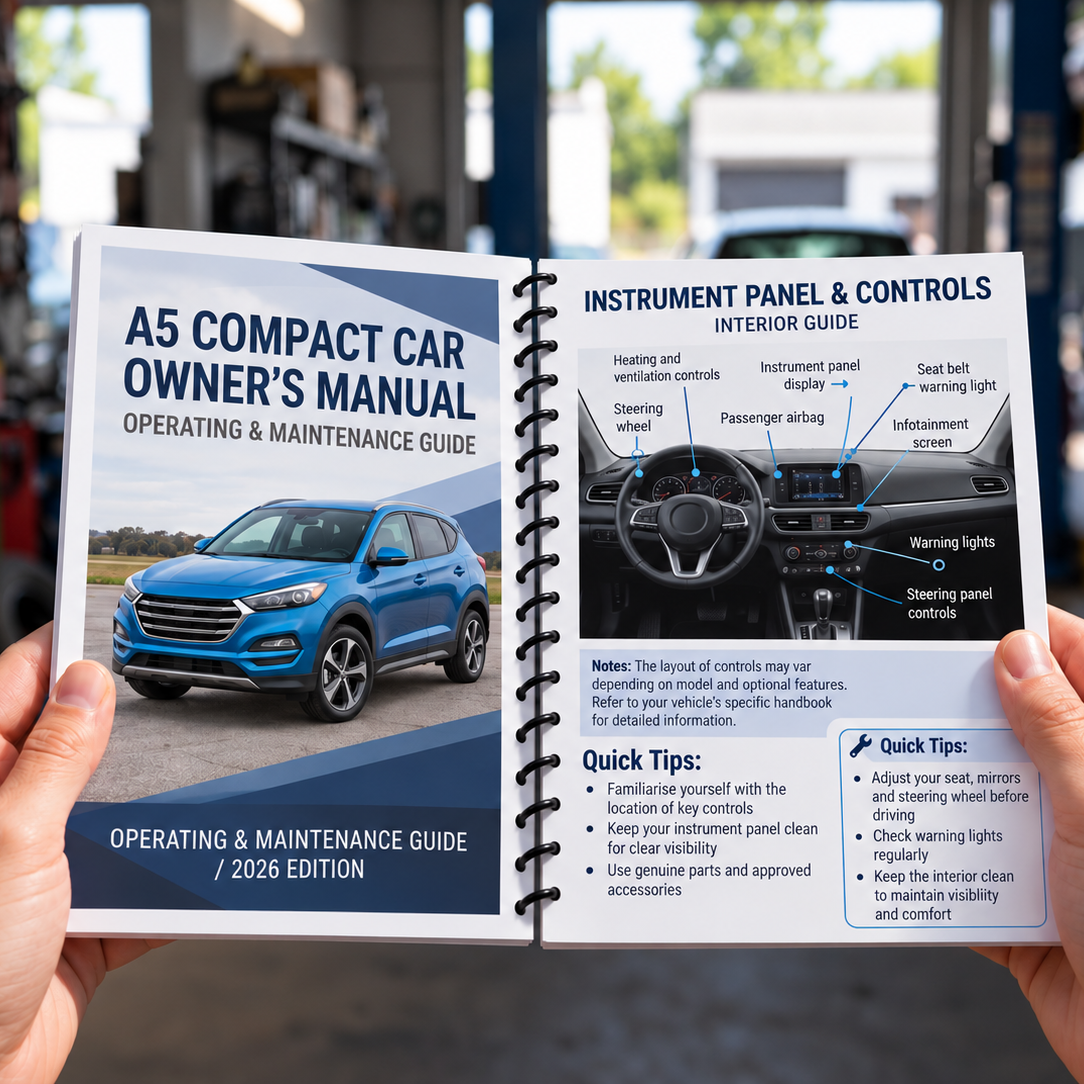
Spiral Bound Booklets
Spiral Bound Booklets are a practical and professional option for manuals, workbooks, reports, cookbooks, guides and training materials. Bound with a durable black spiral, pages turn easily and can lay flat when open, making them ideal for documents that need to be regularly referenced or used.
1Upload your document
PDF max 20MB
2Choose your book
Quality
Size
3Check and add to cart
File check
Before printing we check your page size, page order, page count and image quality, and contact you if anything needs fixing. Spelling and wording aren’t checked.
Tumby Bay Print does not check files for spelling, image quality, page order or sizing. Reprints caused by the supplied file will be charged.
Choose options
Before you upload
Getting your file ready
Send us one PDF with your front cover first, then your inside pages in order. We print it, punch the holes and bind it with a black spiral. Four quick checks and your booklet will come out just the way you pictured it. Not sure about something? Ask us and we'll gladly take a look.
Single pages, in order
Set up your PDF as single pages, not spreads. Page 1 is the front cover, then your inside pages in reading order. The back cover is plain card, so you don't need to design it. Want a page left blank? Put a blank page in your PDF.
Keep 12mm clear on the spiral edge
The holes are punched along the bound edge, so keep text, logos and anything important at least 12mm from the spiral. Pages are printed on both sides, so the spiral is on the left of the front of each sheet and on the right of the back. Landscape books are bound along the top.
Budget or Premium edges
Budget pages print with a small white border, so keep text and pictures at least 5mm from the edge. Premium pages print to the edge, so add 3mm bleed all the way around and keep text 5mm inside the trim.
Sharp images, one PDF
Use 300 dpi images and CMYK colour, and embed your fonts. Upload everything as one PDF, up to 20MB. Leave off any crop or trim marks.
Page sizes and free Canva templates
Each template has a front cover and two inside pages, already set to the right page size with purple guide lines marking the safe zone and the spiral edge. Add more pages with the + button in Canva.
| Size | Budget (white border) | Premium (full bleed) |
|---|---|---|
| A4 portrait | Page size 210 × 297 mm Canva template | Page size 216 × 303 mm Canva template |
| A5 portrait | Page size 148 × 210 mm Canva template | Page size 154 × 216 mm Canva template |
| A4 landscape, bound at the top | Page size 297 × 210 mm Canva template | Page size 303 × 216 mm Canva template |
Counting your pages
A few quick things to check before you choose your number of inside pages in step 2.
Cover Not counted
- The front cover is printed on 300gsm card.
- The back cover is plain 300gsm card.
Inside pages In 2s
- Each sheet is printed on both sides, so 40 inside pages is 20 sheets.
- Odd number of pages? Add a blank page at the end.
Spiral Sized for you
- We use a black plastic spiral sized to fit your page count.
- Thicker books get a bigger spiral, automatically.
No artwork yet? Start from one of the free Canva templates above. Need a hand? Contact the TB Print team.
Quick answers
Common questions
Can't see your question? Call us on 08 8688 2115 or send us a message.
How should I set up my PDF?
- Set up single pages, not spreads, at the page size for your book: Budget A4 210 × 297 mm, A5 148 × 210 mm or A4 landscape 297 × 210 mm. Premium pages are 6mm bigger to include bleed.
- Make page 1 the front cover, then put your inside pages in reading order. The back cover is plain card.
- Keep text and logos at least 12mm from the spiral edge and 5mm from the other edges.
- Save everything as one PDF, up to 20MB, and upload it in step 1.
Why do I need to keep 12mm clear on the spiral edge?
The spiral holes are punched through every page along the bound edge, and the spiral itself sits over that strip. Anything in the 12mm closest to the spiral can be punched through or hidden when the book is open. Backgrounds and colours can run through it, but keep text, logos, page numbers and anything important out of it.
Which side is the spiral on?
Pages are printed on both sides, so it swaps from page to page. On the front of each sheet (the right-hand page when the book is open) the spiral is on the left. On the back of each sheet (the left-hand page) it's on the right. In your PDF, that's the left edge on pages 2, 4, 6 and so on, and the right edge on pages 3, 5, 7 and so on. Landscape books are bound along the top, so keep 12mm clear at the top of the front of each sheet and the bottom of the back. Easiest option? Keep 12mm clear on both sides of every page, like our Canva templates do.
What's the difference between Budget and Premium?
Budget uses 80gsm paper and prints with a small white border around each page, so there's no bleed to worry about. Premium uses 120gsm gloss paper and prints right to the edge, so your pages need 3mm of bleed all the way around. Both come with a printed 300gsm card front cover, a plain 300gsm card back and a black plastic spiral.
Do I need bleed?
Only for Premium. Make each page 6mm bigger than the finished size (for example 216 × 303 mm for A4) and stretch backgrounds and pictures right to the edge, so no white shows after trimming. Keep text at least 5mm inside the trim. Budget pages print with a white border, so set them up at the finished size with no bleed and keep everything at least 5mm from the edge.
How do I count my pages?
Count your inside pages only, not the cover. Each sheet is printed on both sides, so inside pages go up in 2s, and 40 inside pages is 20 sheets. If you have an odd number of pages, add a blank page at the end of your PDF. We fit a spiral to suit your page count.
Can I have blank pages?
Yes. Just put a blank page in your PDF wherever you want one, and it will be printed blank in that spot. Remember to count blank pages in your number of inside pages.
Do you have free Canva templates?
Yes, for every size in Budget and Premium. Each one has a front cover and two inside pages, with purple guide lines marking the safe zone and the 12mm spiral edge.
- Click the template button for your size and quality in “Getting your file ready” above.
- Click Use template in Canva. You'll need to log in or create a free Canva account. This saves your own copy to your Canva account.
- Add your cover and inside pages, using the + button to add more pages. Keep words and logos inside the purple lines. Can't see them? Click File, then Rulers and guides, then Show rulers and guides (Shift+R).
- Delete the TB Print instructions box on the cover. The purple lines don't print, so you can leave those.
- Click Share, then Download, and choose PDF Print with all pages selected. Leave “Crop marks and bleed” unticked, then click Download.
- Upload your PDF in step 1 at the top of this page.
What file types can I upload?
A single PDF, up to 20MB, with all your pages in order. Use 300 dpi images and CMYK colour, embed your fonts, and leave off any crop or trim marks.
Can you check my file before printing?
Yes. Choose “Check my file” in step 3 and we'll check your page size, margins, bleed and image resolution before printing, and contact you if anything needs fixing. We don't check spelling, wording or page order, so please check those carefully. If you skip the check, your booklets are printed exactly as supplied, and a reprint caused by something in the file is charged.
How many can I order?
Choose your number of copies in step 2 and your total is shown in step 3. Need a large run, a different size or a different binding? Contact us for a quote.
How will my booklets get to me?
All orders are printed, bound and sent from our shop in Tumby Bay with Australia Post, Australia wide. Orders placed on weekends and public holidays are processed on the next working day. We don't offer weekend or next-day delivery.
What if something's wrong with my order?
If your booklets arrive damaged, we made a mistake, or you received the wrong item, we'll reprint, replace or refund them. We can't offer refunds for a change of mind, mistakes in the file you supplied such as typos, page order or artwork too close to the spiral, or options chosen incorrectly at checkout. Please contact us and we'll sort it out.